> ## Documentation Index
> Fetch the complete documentation index at: https://docs.jiji.cc/llms.txt
> Use this file to discover all available pages before exploring further.
# Claude Desktop 安装与配置
> 在 Claude Desktop 中填入吉吉API 的请求地址和 API Key,无需登录 Anthropic 账号。
Claude Desktop 是 Anthropic 官方桌面应用,包含 Chat、Cowork 和 Code 三种模式。在开发者设置中填入吉吉API 的请求地址和 API Key,即可不登录 Anthropic 账号直接使用。
通过吉吉API 使用时,对话记录只保存在你的电脑本地,不会同步到 claude.ai。
## 下载安装
下载 [Claude Desktop for macOS](https://claude.ai/api/desktop/darwin/universal/dmg/latest/redirect),打开 `.dmg` 文件,把 Claude 拖入「应用程序」文件夹。
前往 [Claude 下载页](https://claude.com/download) 下载 Windows 安装包,运行后按提示完成安装。
## 创建 API Key
在 [API 密钥](https://www.jiji.cc/keys) 页面新建一个 Key,分组选择包含 Claude 模型的分组。
## 配置吉吉API
打开 Claude Desktop,**先不要登录**。
* **macOS**:点击屏幕顶部菜单栏「Help → Troubleshooting → Enable Developer Mode」
* **Windows**:点击登录界面左上角的菜单按钮 ☰,选择「Help → Troubleshooting → Enable Developer Mode」
应用会自动重启,菜单栏中多出「Developer」菜单。
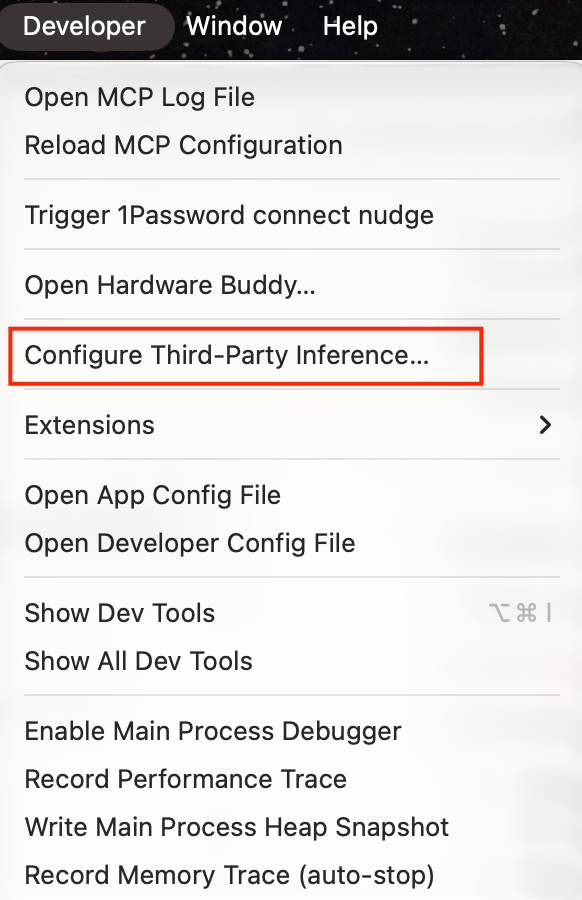
点击菜单「Developer → Configure Third-Party Inference…」。
 在左侧选择「Connection」,把顶部下拉框设为「Gateway」,然后在「GATEWAY CREDENTIALS」中填写:
| 字段 | 填写内容 |
| - | - |
| Credential kind | `Static API key`(默认) |
| Gateway base URL | `https://www.jiji.cc` |
| Gateway API key | 你的 API Key |
| Gateway auth scheme | `bearer`(默认) |
请求地址**不要**加 `/v1`,Claude Desktop 会自动补全。
点击「GATEWAY CREDENTIALS」右侧的「Test connection」,确认连接成功。
点击右下角「Apply Changes」,应用会保存配置并自动重启。
不需要点击「Export」,导出功能用于企业批量部署。
重启后,在登录界面选择使用刚才配置的第三方推理,跳过 Anthropic 登录即可进入应用。
## 验证
进入应用后,在 Chat 中发送任意消息,能正常回复即配置完成。
如果模型选择列表为空,重新打开「Developer → Configure Third-Party Inference…」,在左上角「Search settings」中搜索 `models`,手动添加模型(例如 `claude-opus-5-5`),再点击「Apply Changes」。
## 遇到问题
配置与错误排查
This documentation is built and hosted on [Mintlify](https://mintlify.com), a developer documentation platform.
在左侧选择「Connection」,把顶部下拉框设为「Gateway」,然后在「GATEWAY CREDENTIALS」中填写:
| 字段 | 填写内容 |
| - | - |
| Credential kind | `Static API key`(默认) |
| Gateway base URL | `https://www.jiji.cc` |
| Gateway API key | 你的 API Key |
| Gateway auth scheme | `bearer`(默认) |
请求地址**不要**加 `/v1`,Claude Desktop 会自动补全。
点击「GATEWAY CREDENTIALS」右侧的「Test connection」,确认连接成功。
点击右下角「Apply Changes」,应用会保存配置并自动重启。
不需要点击「Export」,导出功能用于企业批量部署。
重启后,在登录界面选择使用刚才配置的第三方推理,跳过 Anthropic 登录即可进入应用。
## 验证
进入应用后,在 Chat 中发送任意消息,能正常回复即配置完成。
如果模型选择列表为空,重新打开「Developer → Configure Third-Party Inference…」,在左上角「Search settings」中搜索 `models`,手动添加模型(例如 `claude-opus-5-5`),再点击「Apply Changes」。
## 遇到问题
配置与错误排查
This documentation is built and hosted on [Mintlify](https://mintlify.com), a developer documentation platform.